Drag-and-drop Templates
4:23In this video, you'll get a sneak peek of the power behind the Coda doc – how it provides you with templates to create things quickly and how it lets you easily connect to other apps and services.
Resources
- Drag-and-drop templates
- Drag-and-drop templates | Coda Essentials
- Overview of Tables
- Tables | Coda Essentials
- Managing columns: Hiding, Un-hiding, and Re-ordering
- Creating a View
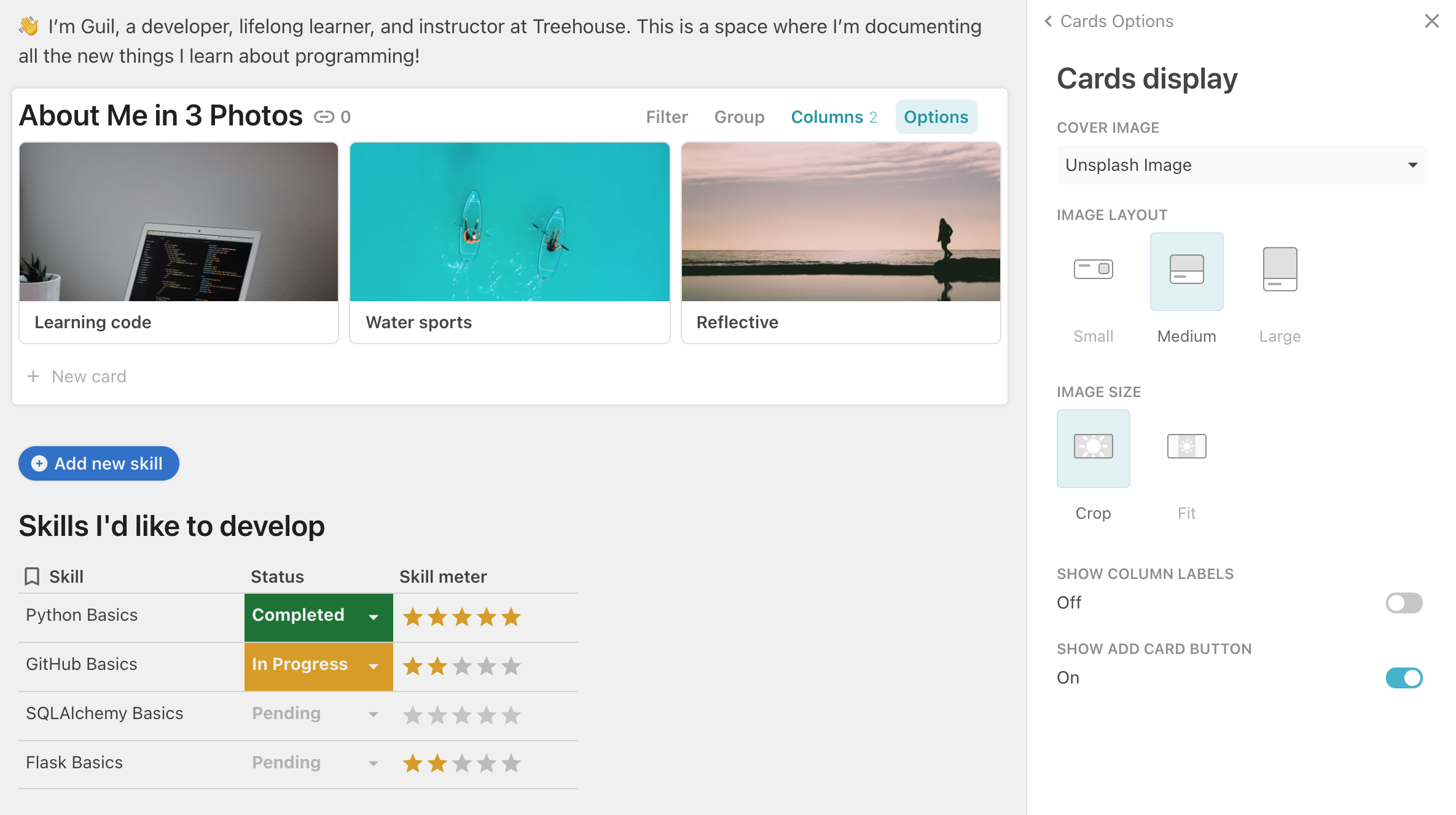
Adjust Image Size & Layout in Cards Display
When using the Cards layout, you can display consistent heights for your images.
- Make sure that the column type is "Image" or "Image Url" (under "Images & Files").
- In the "Cards Options" panel, click "Cards display".
- Set "Image Size" to "Crop" or "Fit". You can also set a Small, Medium, or Large image layout.
Related Discussions
Have questions about this video? Start a discussion with the community and Treehouse staff.
Sign upRelated Discussions
Have questions about this video? Start a discussion with the community and Treehouse staff.
Sign upYou've learned how Coda in many ways is just a doc. 0:00 Now I'll give you a sneak peek of the power behind the Coda doc. 0:04 Like how it provides you with templates to create things quickly, and 0:08 how it lets you easily connect to other apps and services. 0:12 I'll start by teaching you how to create and modify a table template that lets you 0:16 pick and display images based on keywords you provide. 0:20 I'll display a table in my About Me page to feature three photos that best 0:23 describe me. 0:27 Coda provides many commonly used templates, like question and 0:29 voting tables, meeting planners and to do lists you can quickly add to your page. 0:32 Simply drag and drop a template into your doc from the Explore panel or 0:37 insert a template using the slash command. 0:41 Then type what you're looking for and 0:44 select it from the template options in the drop down list. 0:46 Below my paragraph, I'll type /unsplash, 0:50 then select "Unsplash image picker" in this case. 0:55 This template is a table that lets you pick an image from the Unsplash gallery 0:59 based on a keyword or phrase you type. 1:04 Now I can customize this table to fit my needs. 1:07 If you've worked with spreadsheets or tables, Coda tables look and 1:10 work in similar ways, with columns and rows you're probably familiar with. 1:14 Coda sees tables as more like databases that let you easily organize and 1:19 manipulate data across multiple tables. 1:24 When working with Coda tables, the focus is more on rows and columns, 1:27 rarely on individual cells. 1:32 You can think of each row in a Coda table as a unique record with a unique set 1:34 of data. 1:39 And the columns are pieces of information that every record shares. 1:40 So let's start by renaming the table, "About Me in 3 Photos". 1:46 Unlike spreadsheets, Coda lets you name tables and columns any way you like, 1:56 with punctuation, spaces and with fewer character limits. 2:01 If you hover over a column header, like keyword, 2:05 notice the data type icon next to the text. 2:08 The data type icon immediately lets you know what type of data or 2:12 content is being used or displayed in the column. 2:16 For example, the "Keyword" column uses the text type. 2:19 The "Picker" column is a number type, shown as a slider scale. 2:24 And "Orientation" is a select list. 2:28 You would think that the "Unsplash Image" column should be an image type, but 2:31 in this case it's text because this column contains a formula, someone else has 2:36 kindly written for us, that communicates with the Unsplash image service. 2:41 I'll point you to resources about Coda formulas later in the final step of this 2:45 workshop. 2:49 All right, if you're following along go ahead and replace the three 2:50 keywords with different keywords or phrases that best describe you. 2:54 I'll set mine to "Learning code", 2:59 "Water sports", and "Reflective". 3:07 I'll change the orientation for all of them to landscape so 3:14 there's some consistency in how they display. 3:18 Then slide the picker scale to find the Unsplash image that best represents each 3:23 keyword or phrase. 3:28 I want to display only the keywords and images that best describe me. 3:31 So I want to hide these Orientation and Picker columns. 3:36 You can do that by clicking the table's "Columns" button, 3:40 then click the eye icon next to Picker and Orientation. 3:44 And the real beauty of Coda is that it offers you many different ways to display 3:52 your tables. 3:56 For example, go to table options and select the Cards view and 3:57 notice how the images are now laid out as cards. 4:02 Nothing in the data is changed, it's just a different way to view it, 4:06 often more visual. 4:10 You can display the data as a chart, a calendar or a project timeline, 4:14 if you have dates in it for example. 4:18 I'll stick with the Card view for my page. 4:20